
How to Read Your EPUB E-book Files
Hey! Thanks for ordering an eBook from Arkbound. Every book purchased, every review shared, every online conversation about an Arkbound book or author, and every page read helps create meaningful real-world impact.
Here’s a simple guide for uploading and reading your ebook on Kindle, Google Books, Apple Books and Android.
Kindle
Kindle does not open EPUB files directly, but Amazon will convert them for free.
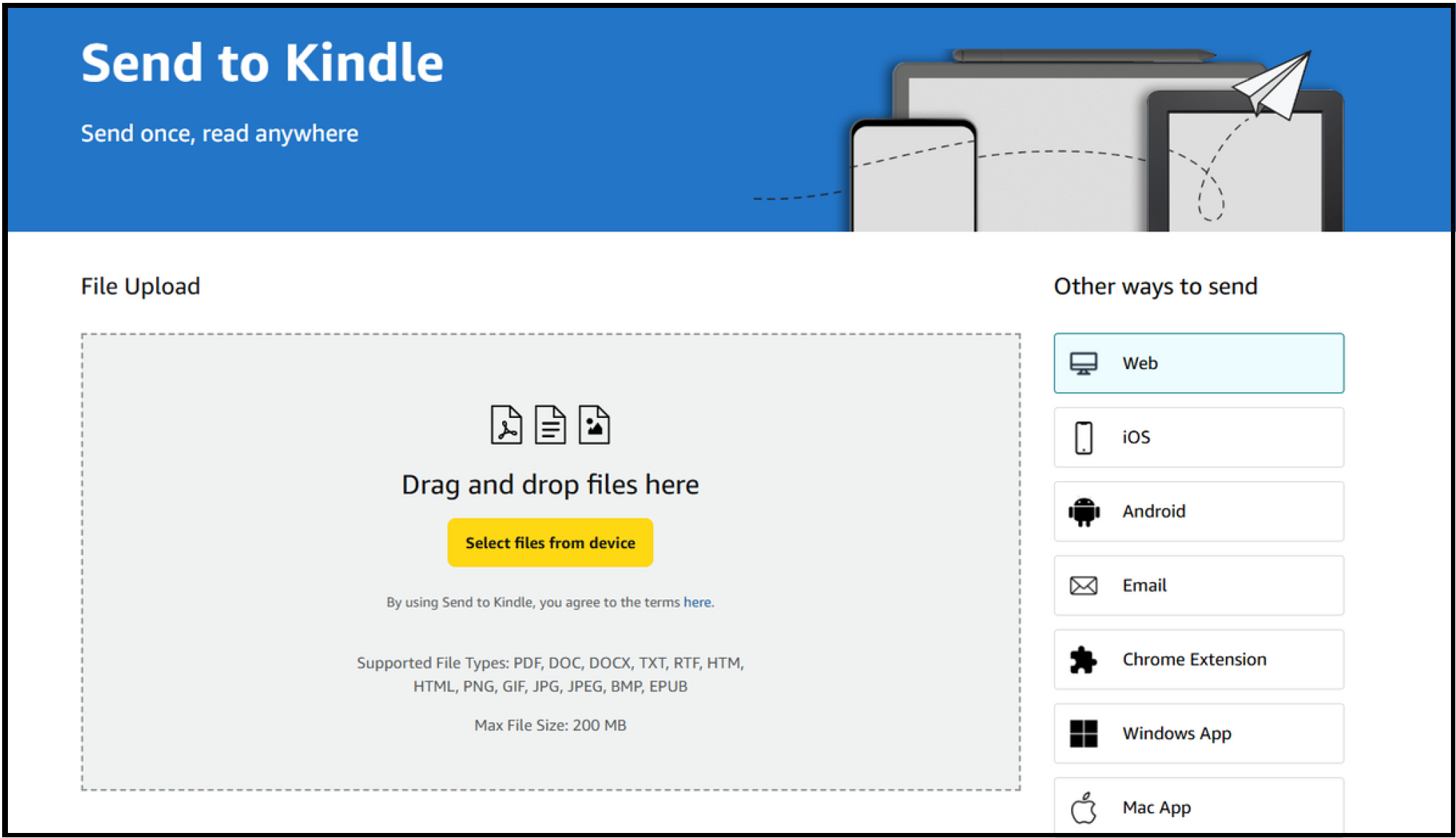
On your phone, tablet or computer, go to /www.amazon.co.uk/sendtokindle and sign in with your Amazon Kindle account.
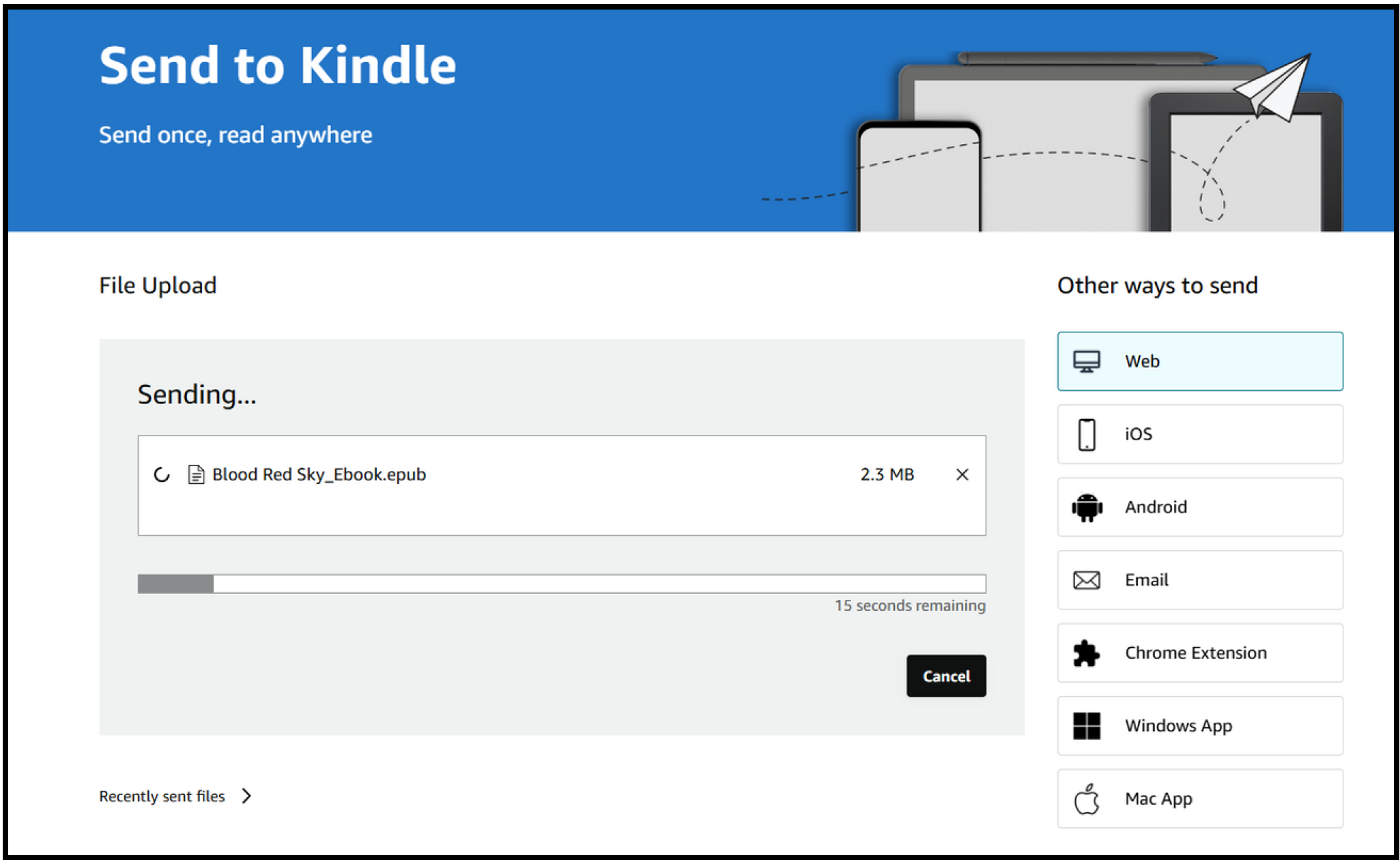
Upload the EPUB file and click Send.
Allow the file to upload. When it’s done uploading you’ll see a notification ‘Your files are on their way’ and the status as ‘Processing.’ After a few minutes, the status should change to ‘In library’.
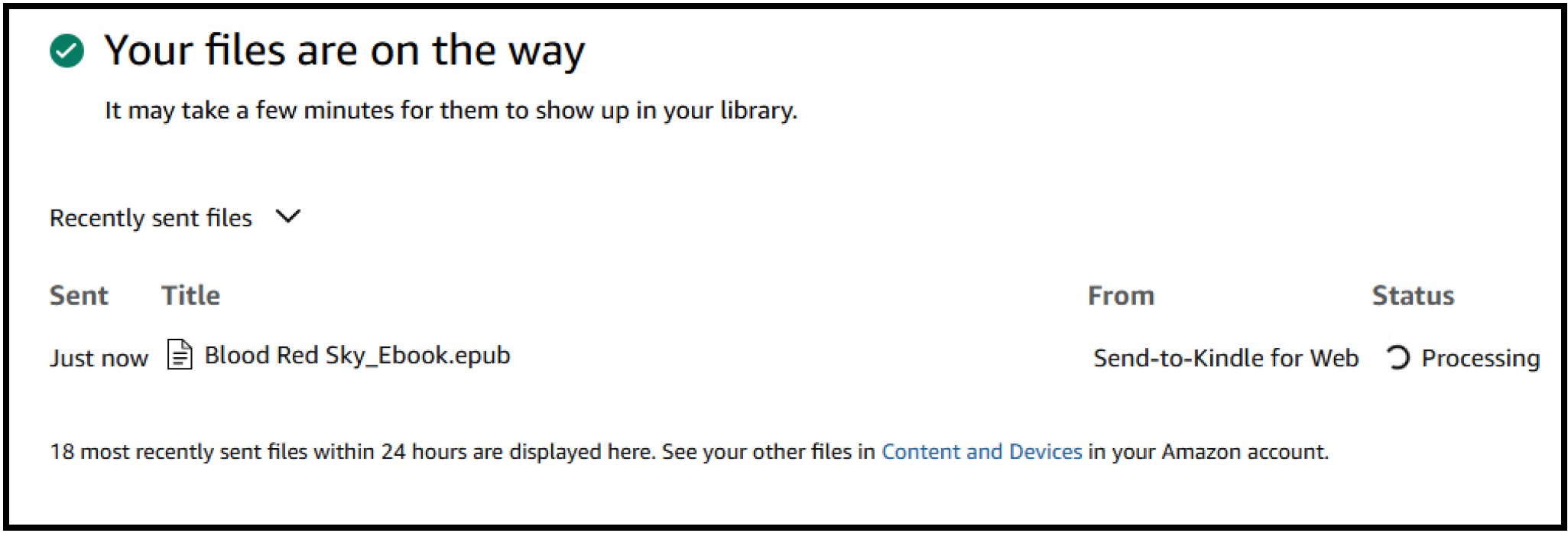
Open your Kindle device or Kindle app and the book will appear in your library automatically.
Once it appears, you can read it offline!
Google Books
Google Books supports EPUB files directly.
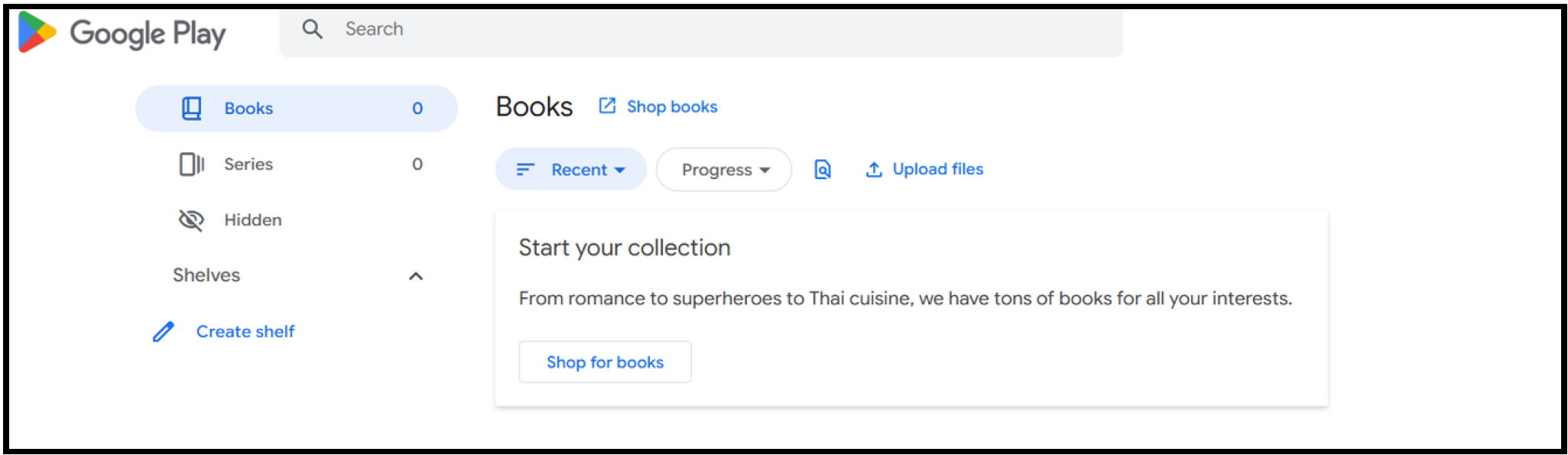
Go to play.google.com/books and sign in with your Google account.
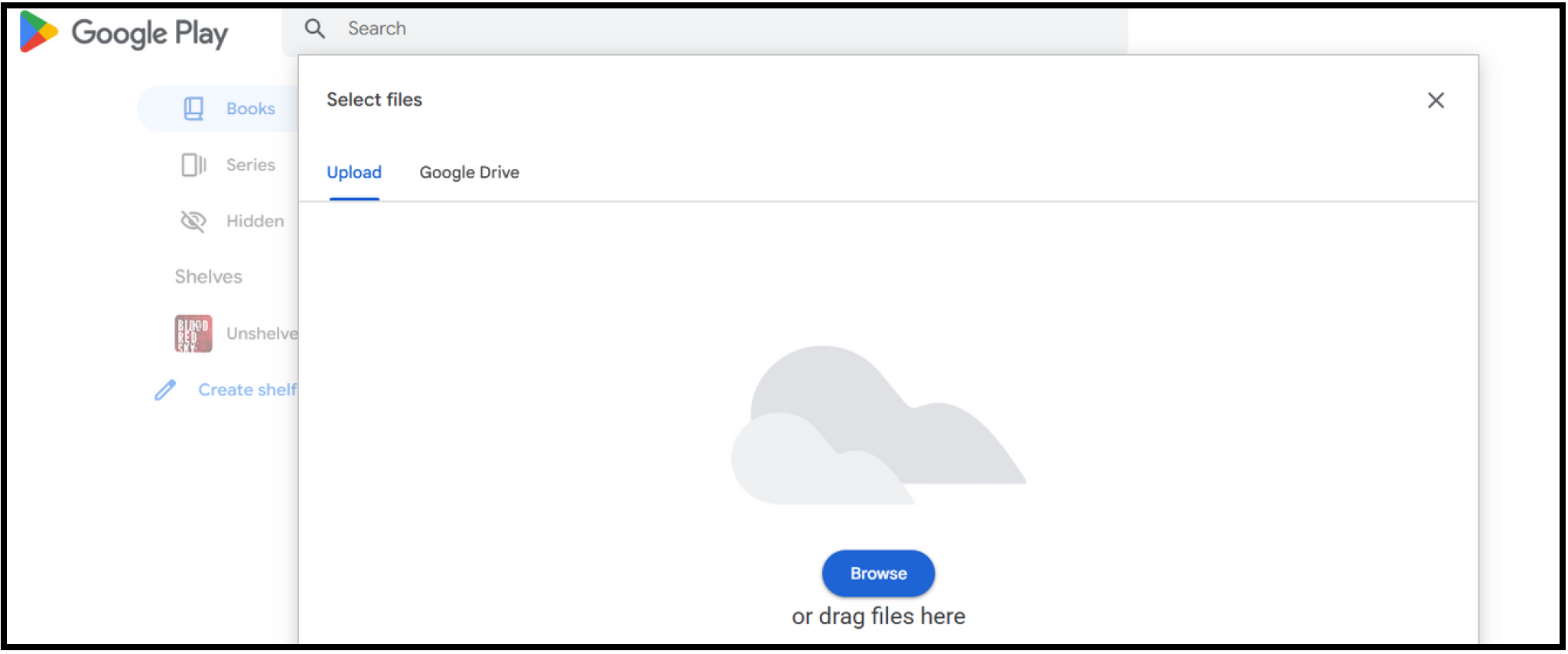
Click ‘Upload files’ in the top-centre of the page and upload the EPUB.
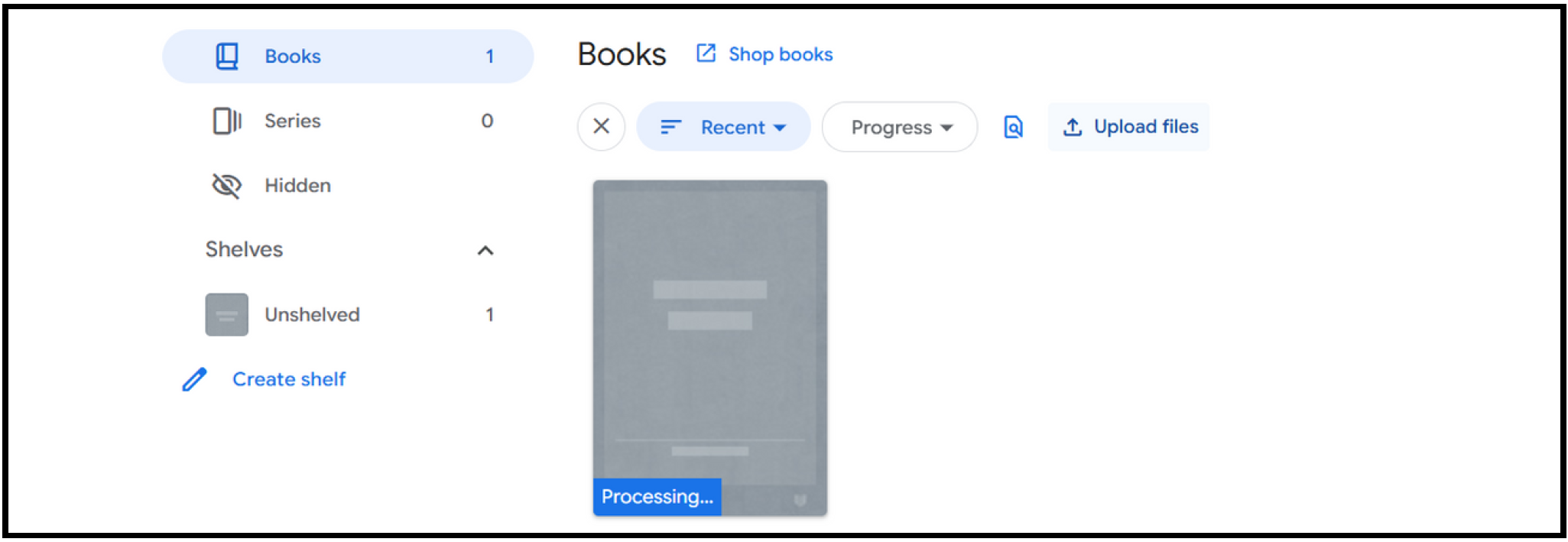
Open Google Books and tap the book to start reading.
Your book will sync across devices automatically.
Apple Books (iPhone or iPad)
Apple Books opens EPUB files without conversion.
Find the EPUB file on your device. This might be in the Mail app, Messages, Files, or in your downloads. Tap the file once so it opens a preview. Look for the Share icon (a square with an arrow pointing upward) and tap the icon.
Find and tap ‘Books’ in the list of apps that appear.
Apple Books will open and import the ebook.
Go to ‘Library’ in the Apple Books app and tap the book to start reading.
The book will remain available offline.
Android (Lithium Reader)
Lithium is a free, simple EPUB reader for Android and does not require an account.
Install ‘Lithium EPUB Reader’ from the Google Play Store.
Once installed, download the EPUB file to your device if you have not already done so.
Open the Lithium app. The first time you open it, you may be asked to allow access to your files. This is normal and required so the app can find your ebook. Allow access when prompted.
In the Lithium app, choose the option to ‘Import' or ‘Open’ a file. Navigate to where you downloads are stored and select the EPUB.
Tap the book and it will open and be added to your library.
You can also open the EPUB directly from your Downloads or Files app and select Open with Lithium.
